Getting started
How to set up your first batch on Classvora
Follow these steps to create your class, add subjects, and invite your team — takes less than 10 minutes.
Create a Classvora account and log in
If you don't have an account yet, head to https://classvora.com/signup. Already have one? Go ahead and log in.
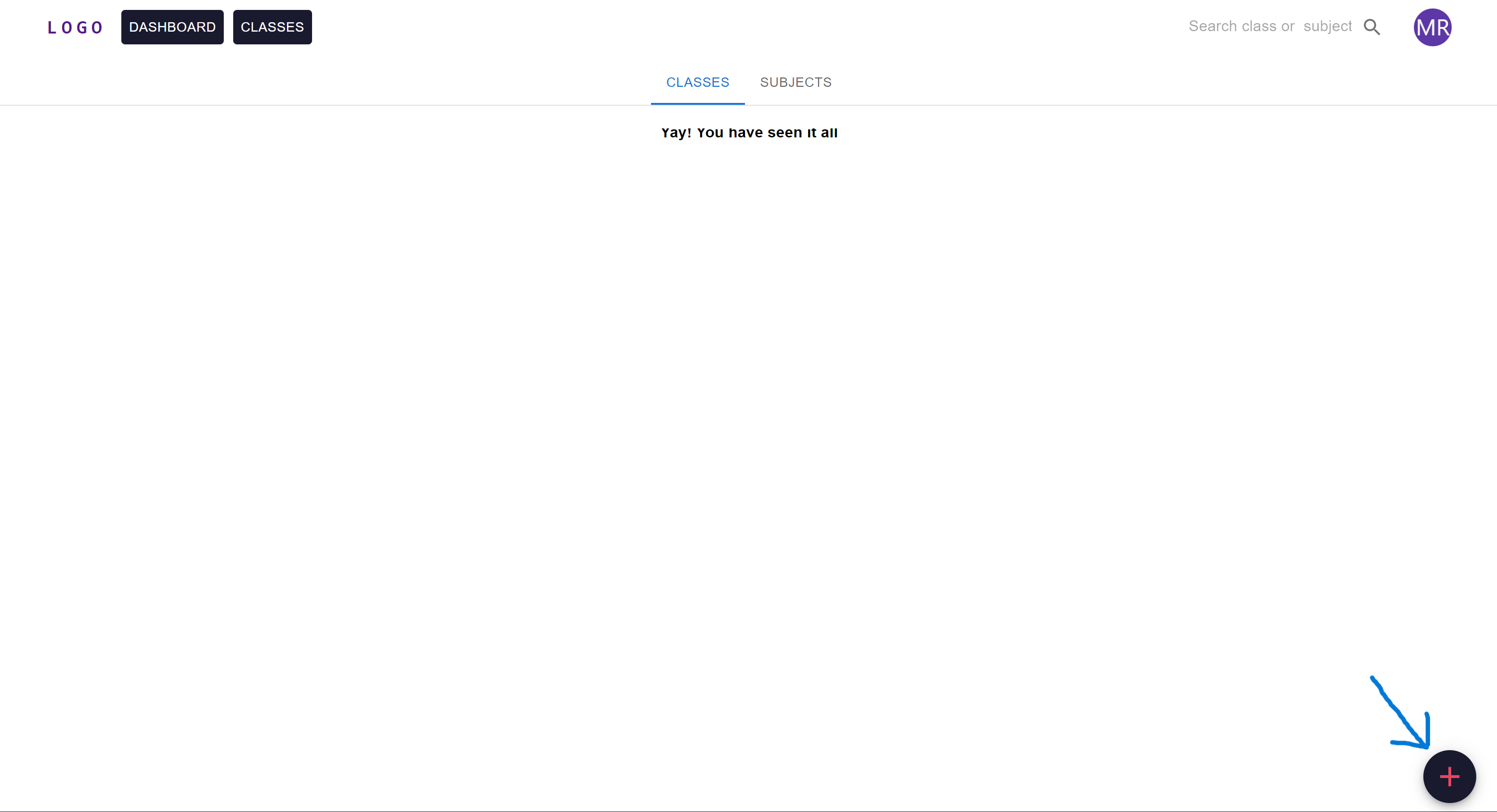
Go to Dashboard and open the Class tab
Once logged in, you'll land on the Dashboard. Make sure the Class tab is selected. Click the button in the bottom-right corner.
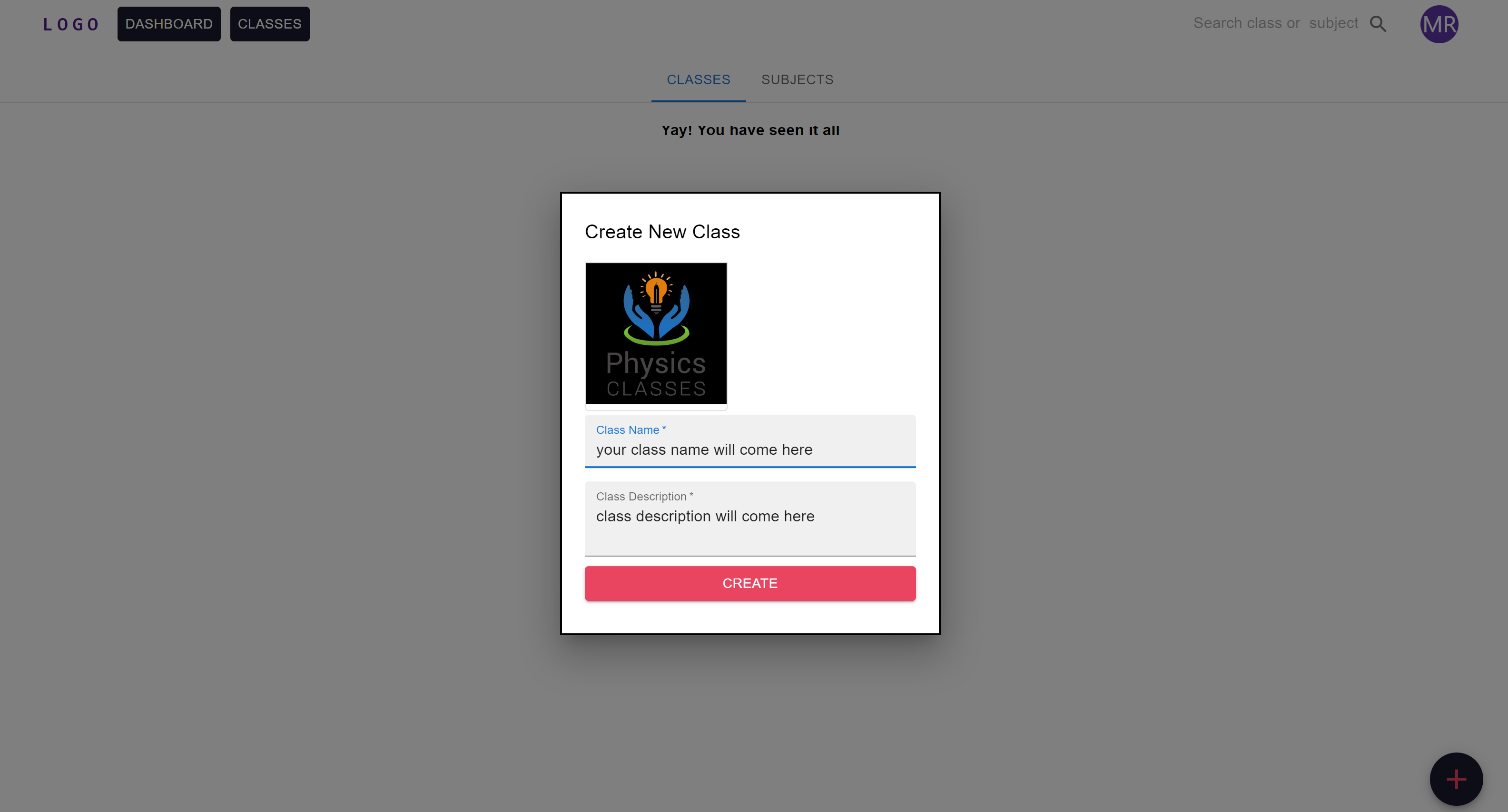
Create your class
A form will appear. Enter a unique class name — if the name is taken, choose a different one. Add a description and upload a logo (PNG, JPEG, JPG, SVG, or GIF). Click Create Class.
Add subjects to your class
Navigate to your class. The Subject tab should be selected by default — if not, click it.
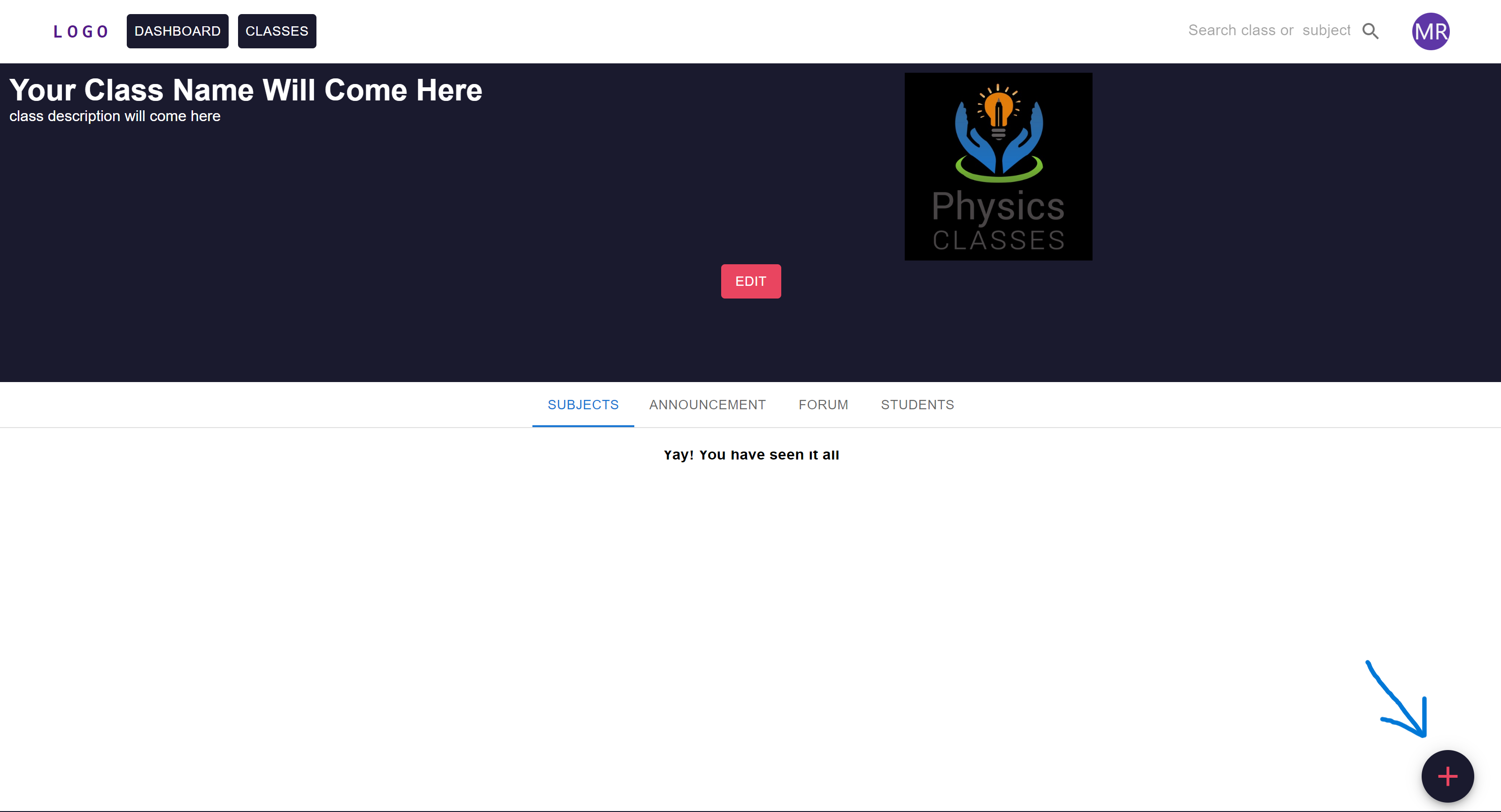
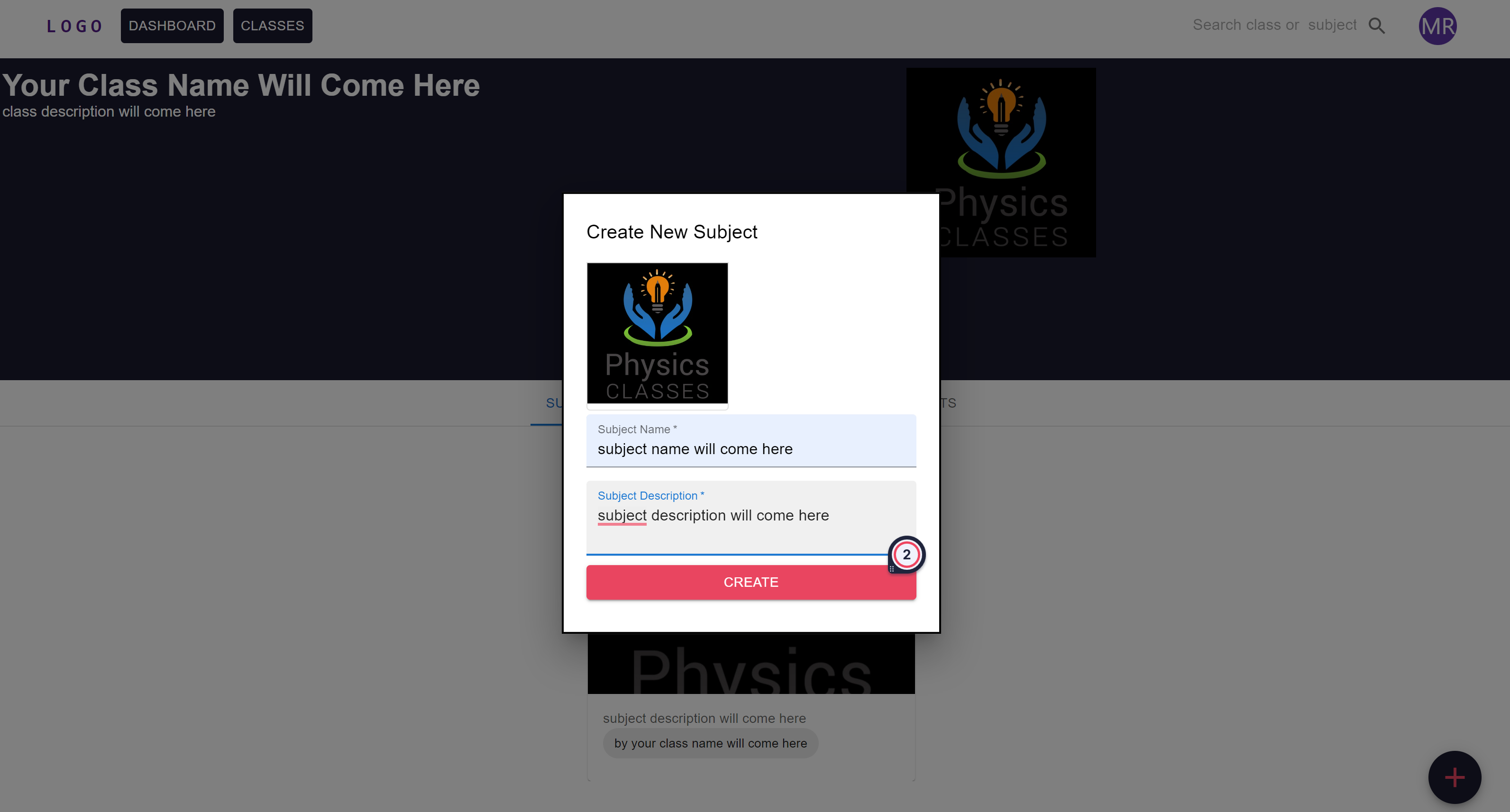
Click the button to open the subject form. Enter the subject name, description, and logo. No duplicate subjects are allowed within the same class.
Add faculty to your subjects
Your faculty members need a Classvora account. Go to your class, select a subject, then click Add Faculty (visible only to class admins). Enter the faculty member's registered email address.
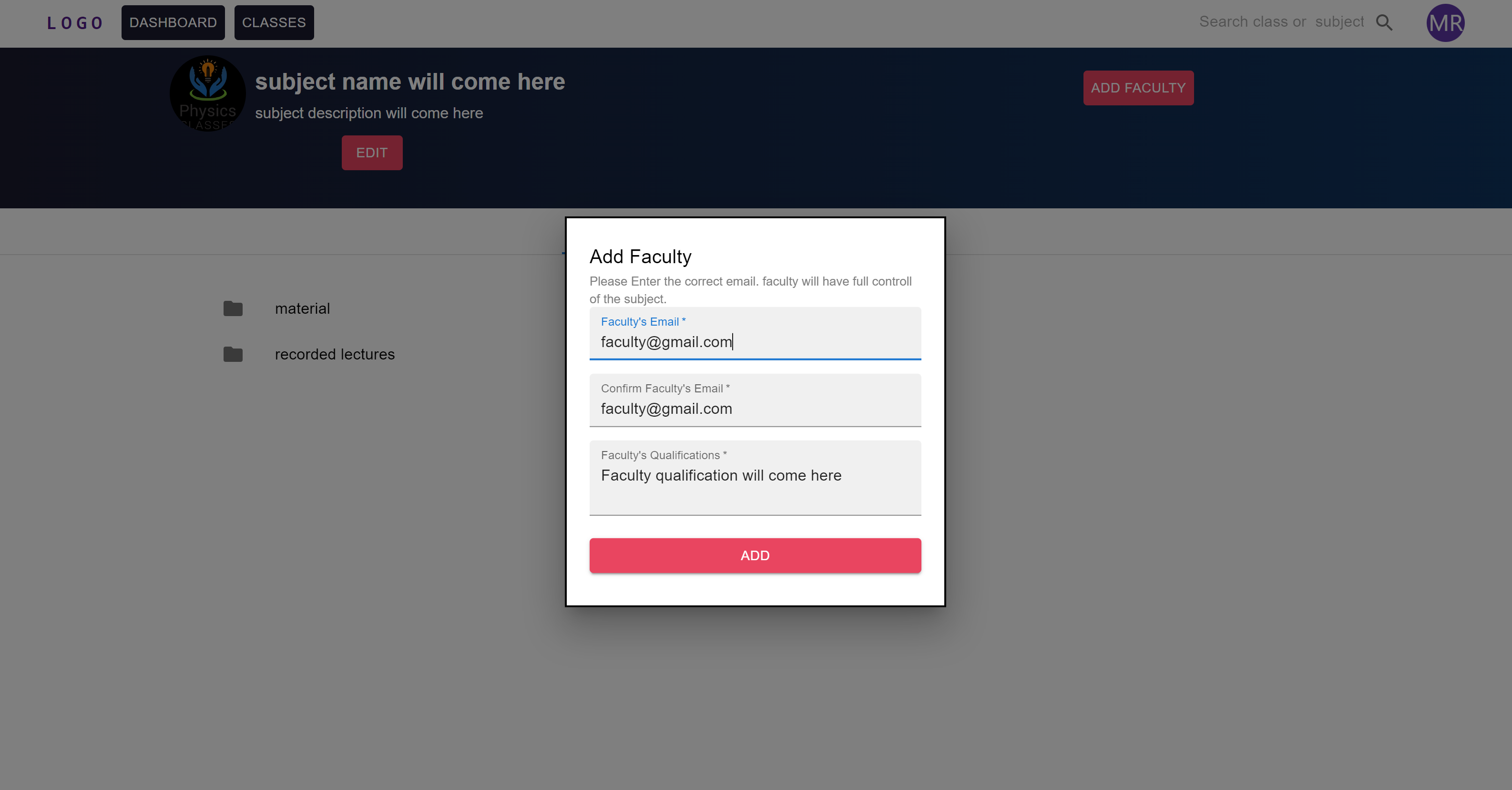
Faculty members can add and edit tests, view student mark sheets and analytics, create meetings, and post announcements. They have full access to the subjects they're assigned to. You can remove or replace faculty at any time.